
A Hands-On Tour: Layout
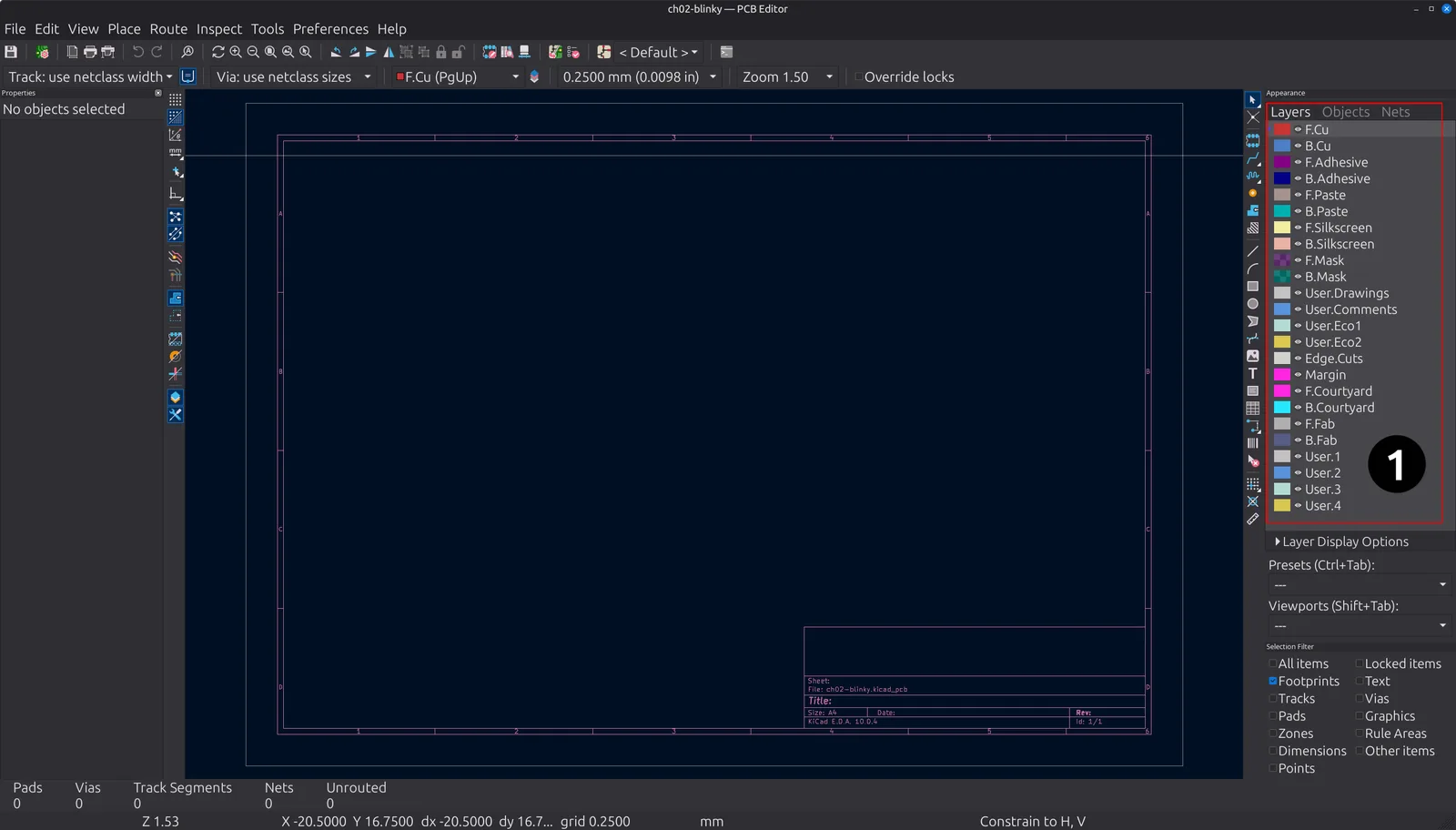
At the end of the last chapter you used the command “Update PCB from Schematic” to have KiCad import the circuit’s components and nets in the layout editor. That is where we pick up now. In this chapter you will take the 555 blinker you drew as a schematic and turn it into a real, physical board. You will place the footprints in appropriate positions, draw copper of a real width connecting them, draw an outline that gives the board its shape, and, at the very end, generate the set of files a factory needs to build it. By the time you finish, you will have designed a complete, manufacturable PCB from first click to final export. This is the other half of the lap you started in Chapter 2, and the two chapters are meant to be completed back to back.
The PCB Editor is a fully featured, powerful tool, and laying out boards is where a lot of the craft that a PCB engineer learns. Professionals route dense, many-layer boards with hundreds of parts in this same editor. We are going to use a small, friendly slice of it today, enough to get a real board out the door, and you will grow into the rest over the course of the book. So we will leave the advanced corners alone for now. Such advanced boards have more than two layers, make use of the router’s push-and-shove cleverness, require length tuning, differential pairs, the net inspector, net classes and custom design rules in depth, copper-zone priorities, teardrops, blind and buried vias, drawing your own footprints, and a lot more. KiCad’s official documentation covers every one of those in depth when you are ready, and, of course, you can learn these skills in later volumes in this book. Today, we make a simple board to learn the fundamental skills of a PCB engineer.
As in the last chapter, we act first and understand later. I will tell you which button to click and give you a short reason each time, but the deeper ideas wait their turn. Chapter 4 explains why the layout works the way it does, and Chapter 5 turns these steps into a checklist you will reuse on every project. Here is where we are headed (Figure 3.1).
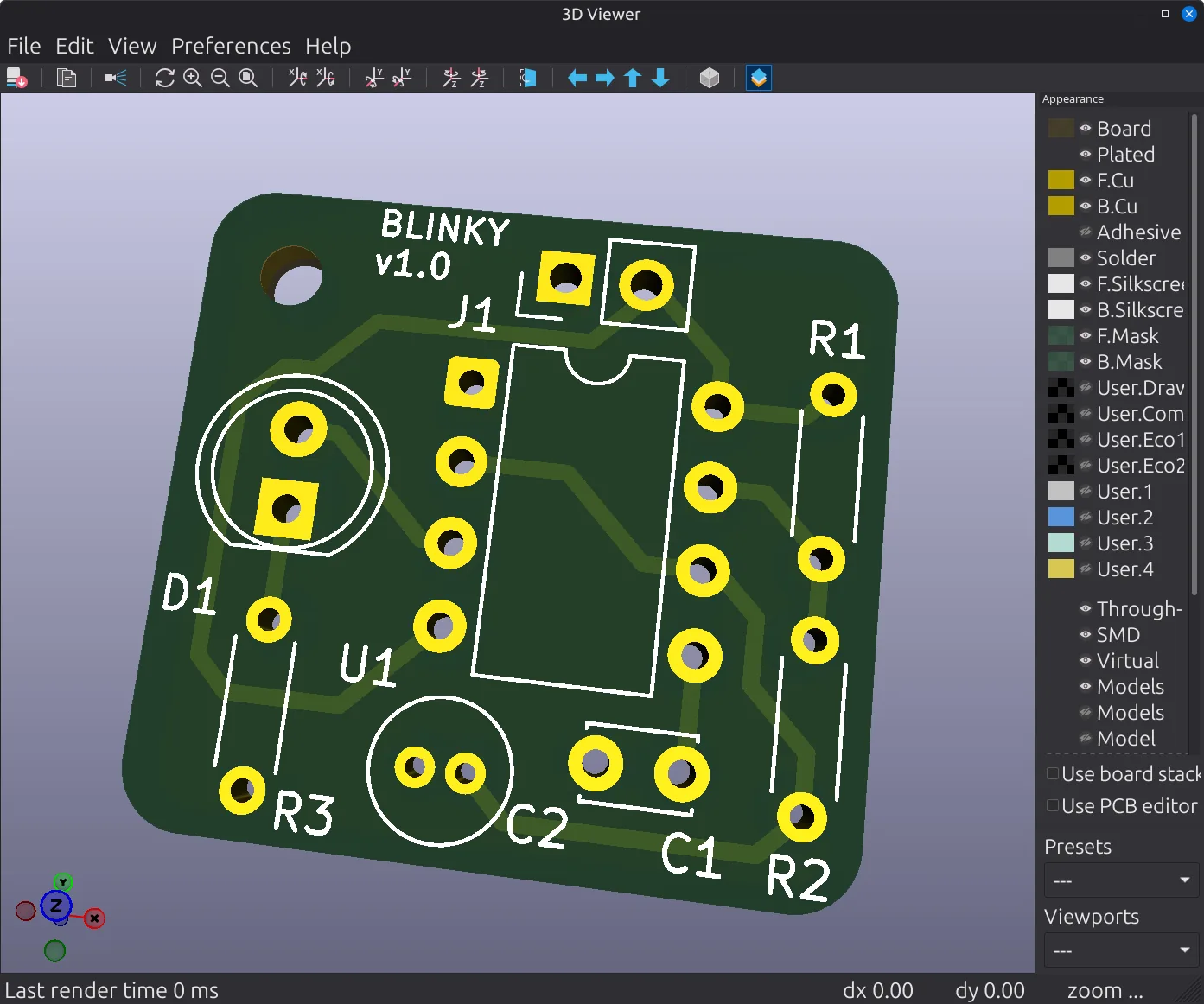
Figure 3.1: The finished blinker board, shown in KiCad’s built-in 3D viewer. This is where we are headed. You will design a real, two-layer PCB with eight parts, the copper routed, a ground pour underneath, a mounting hole in the corner, and “BLINKY v1.0” printed on the silkscreen. You will use the 3D viewer at the end of the chapter.
Every part in this board came across from the schematic already knowing which physical footprint it will become, because you paired each symbol with a footprint back in Chapter 2. Nothing about the parts has to be re-entered here. Our job in this chapter is purely physical, deciding where everything sits and how the copper runs.