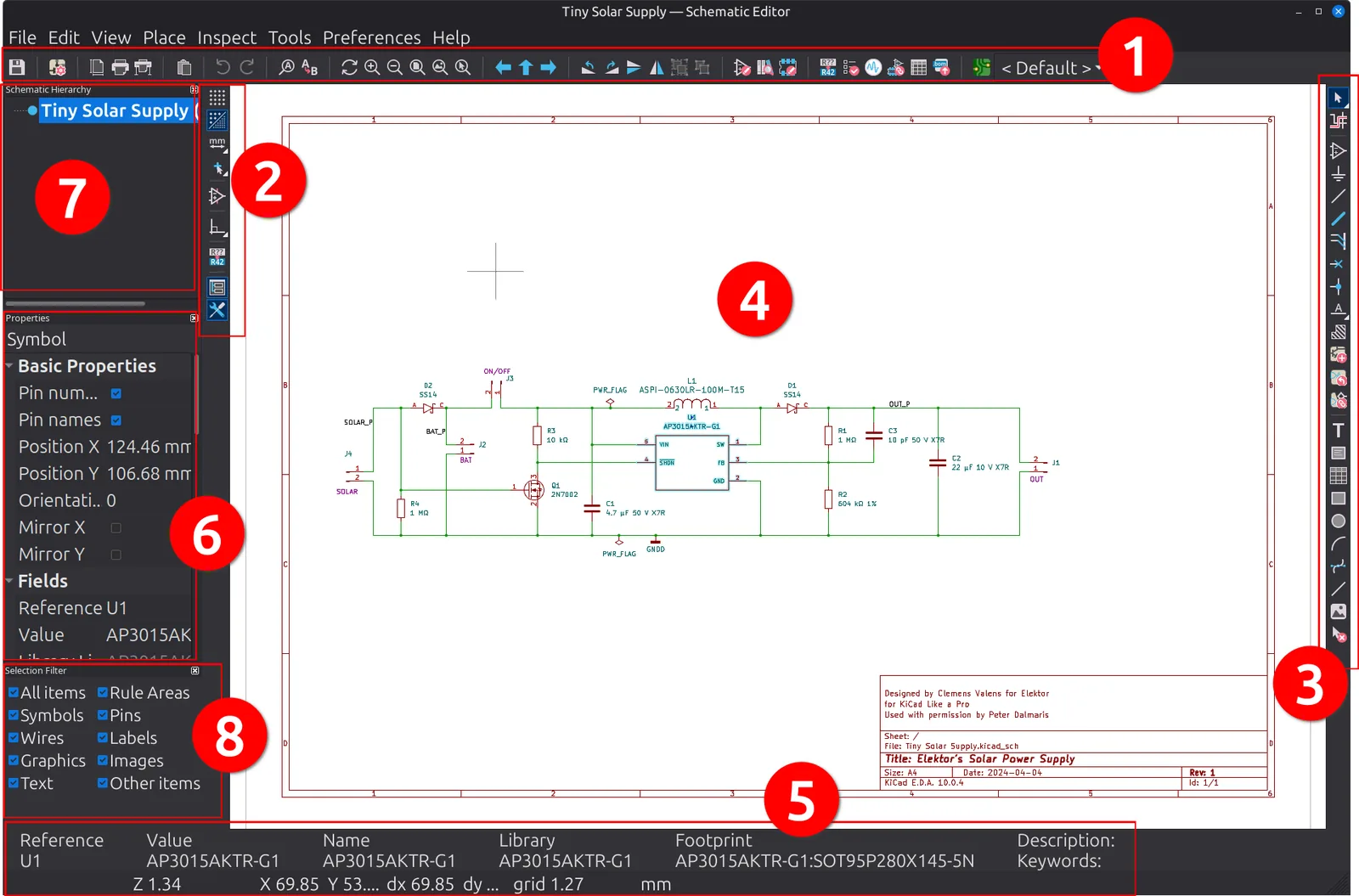

Editor orientation
You have already driven both of KiCad’s main editors. In Chapter 2 you drew a complete schematic, and in Chapter 3 you turned it into a finished board. In this chapter, are going to slow down just enough to put names to the parts of each window of the two editors, so that when a later project says “open the Appearance panel” or “use the selection filter,” you know where to look and what it does.
Think of this chapter as a map, not a catalogue. I am not going to march you through every single button on every toolbar; that would be a wall of lookup material, and worse, it would go stale the moment KiCad changes an icon. Instead, I will show you the regions of each editor, explain what each one is for, and, most importantly, teach you how to find any tool quickly when you need it. The exhaustive, button-by-button detail already exists, and it is excellent. KiCad’s official documentation is thorough and kept current, and I will point you to it whenever you want to go deeper. Think of this chapter as the orientation that makes that reference easy to use, rather than a replacement for it.
Both editors are large, comprehensive CAD programs, and you will rarely need all of either one on a given day. The goal here is not to memorise anything. It is to make the windows feel familiar, so that nothing on screen is a mystery and you always know roughly where to reach. You will pick up the details by using them, exactly as you did on the tour.