

Getting Your Board Made
You have built two boards now, and twice you finished with a folder of manufacturing files sitting quietly on your disk. That folder is a real board waiting to be made. In this chapter we stop designing and finally make something you can hold. You will produce your first ‘bill of materials,’ package and double-check the Gerbers you already know how to plot, learn the handful of things a factory needs from any board before it can build it, and then walk all the way through placing an order. By the end you will have sent a design out into the world and have boards on the way to your door.
Getting a board ‘made’ can mean two different things. The first is manufacturing the bare board. In this case, the factory etches your copper, drills your holes, and finishes the surface, then ships you an empty PCB that you populate yourself with a soldering iron. The second is assembly, sometimes called turnkey. This is when the factory also buys and solders the components on, and hands back a finished, working board. Volume 1 does the first only. Every order in this chapter is for the bare PCB. This keeps the list of what you must supply short. A bare-board order needs just two things from you: the Gerber files and the drill file. It does not need a bill of materials, because the factory is not sourcing or placing any parts on your behalf. We will still make a BOM in a moment, because you need one yourself to buy the components you will solder, but keep in the back of your mind that on a Volume 1 order the manufacturer never sees it. Assembly, and the extra files it asks for, is a Volume 2 topic; I will point out where it would slot in as we pass it.
I will use the breadboard power supply from Chapter 8 as the example throughout. It is the simpler of the two boards you built. Nearly all parts are through-hole, with a single surface-mount part. Therefore, it keeps our eyes on the ordering process itself rather than on the board. The solar supply from Chapter 9 orders in exactly the same way, step for step, so follow along with whichever board you would rather hold at the end; nothing in this chapter changes between them. For the ordering walkthrough I will use NextPCB, which is the sponsor of this book and a service I have used happily for years. I want to be clear about that arrangement and equally clear about what it does not change: every step in this chapter is the same at any reputable online PCB manufacturer. You upload the same files, you choose from the same handful of options, and you read the same kind of quote back. NextPCB is the worked example, not a requirement. Learn the shape of the thing once here, and you can order a board anywhere. Let’s begin.
Exporting a BOM
The first thing to make is a list of what the board is built from. It is called a ‘bill of materials,’ or ‘BOM’ for short. It is a list that contains information about every part the board needs, gathered with its quantity. You will reach for it twice. The first time is for yourself, when you buy the components to solder onto the bare board once it arrives. The second is for the factory, in the case where you would rather not solder the fiddliest part by hand and ask the fab to place it for you. When a fab assembles your board, the BOM is the shopping list it works from, so it is important to know how to produce one correctly.
For the bare-board orders in this volume it is the first use that applies: the factory you order from later in this chapter will not need this file. As I mentioned, make it anyway because it is the list you buy your own parts from, and when Volume 2 has a factory assemble a board for you, this is exactly the file it will want (you will see where it gets uploaded at the very end of the chapter, Figure 10.12).
KiCad builds the BOM straight from the schematic, because the schematic is where every part and its value already live. Open the Schematic Editor on the breadboard supply, then choose “Generate Bill of Materials…” from the “Tools” menu, or click the same button on the top toolbar (Figure 10.1). This opens the “Symbol Fields Table,” a spreadsheet view of every symbol on the sheet, one part per row and one piece of information per column. The reason KiCad shows you this table rather than just dumping a file is that a BOM is rarely one fixed thing. Different suppliers and different assembly services want the columns in a different order or under different names, and this is where you arrange them before you export.
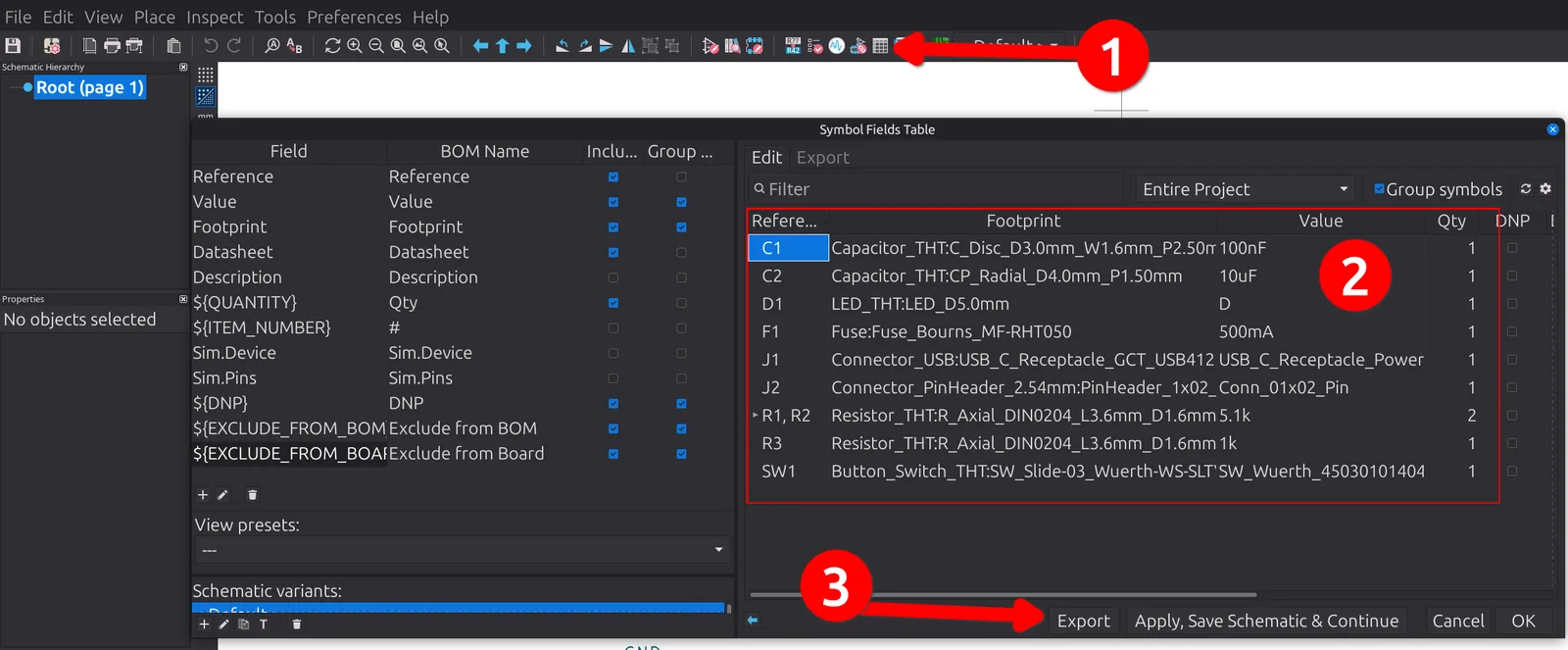
Figure 10.1: The Symbol Fields Table is where KiCad gathers every part on the schematic into a bill of materials. ❶ marks the toolbar button that opens it. ❷ is the grid of parts, one per row, with the resistors R1, R2 already folded onto a single line at a quantity of two. When the columns look right, ❸ the “Export” button writes the file.