Measure a distance
Again and again while laying out a board you will want to know a distance. Will this connector clear that capacitor? Is the mounting hole far enough from the edge? How wide is the gap I just left between two tracks? KiCad has a ‘measuring tool’ for exactly these questions, and it changes nothing on the board, so you can reach for it freely. Start it from the right toolbar (❶ in Figure 11.5) or with “Ctrl+Shift+M”, click once where you want to measure from (❷), and move the cursor. A live readout follows your pointer (❸) showing the straight-line distance, the separate horizontal and vertical distances, and the angle. Click again to drop the measurement, or press “Esc” to put the tool away.
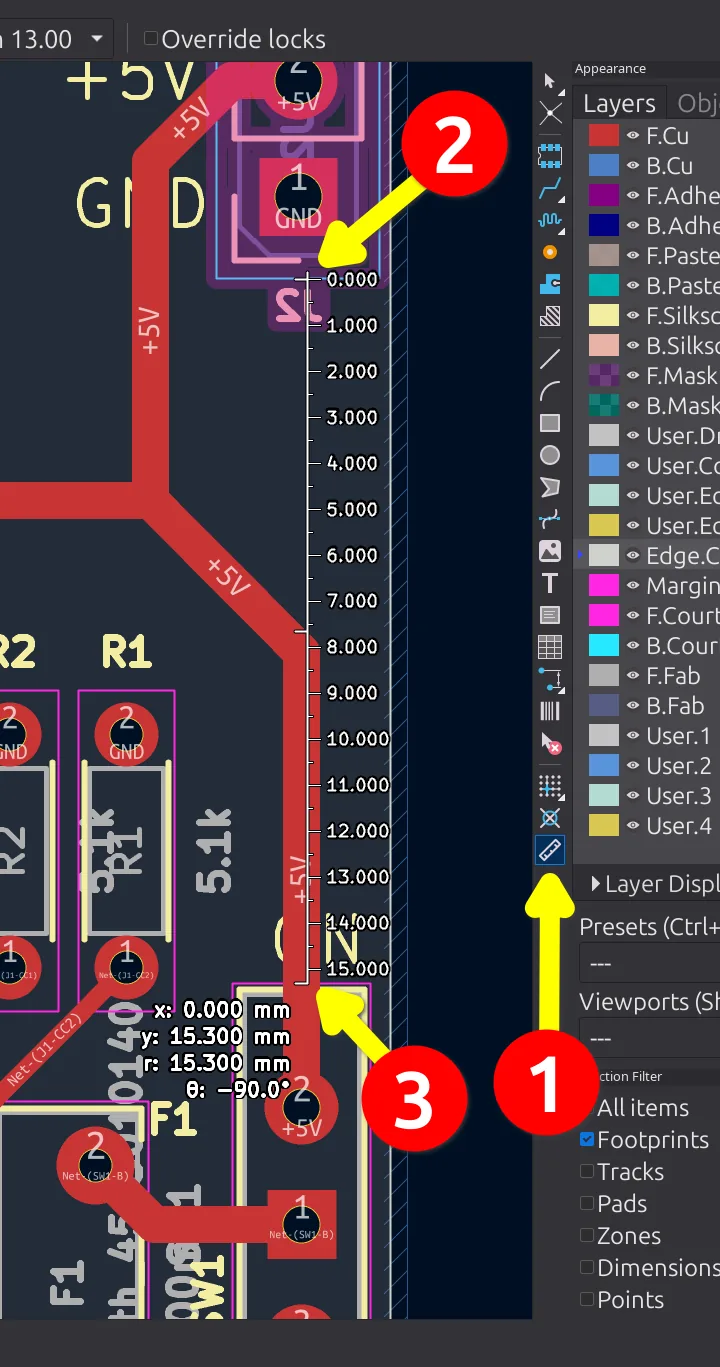
Figure 11.5: The measuring tool (❶) reports the distance from a start point (❷) to the cursor, with the live readout (❸) showing the total distance, the X and Y distances, and the angle. It changes nothing on the board.
It is a simple tool, but it settles the distance questions that otherwise nag at you. When you are not sure two parts will sit side by side, measure the gap rather than guess, and if the number worries you, move one of them now, while the board is still on the screen. One thing to know is that this measurement is fleeting. The moment you click elsewhere or leave the tool, it disappears. It is meant for a quick check, not for a number you want to keep. When you do want a measurement that stays on the board, reach for a dimension instead, which is the next recipe.