

Once you have completed the schematic design of a new board, and you move to the layout phase, the first thing you do in the layout editor is to set up the board. In Volume 1 board setup was a relatively straightforward operation. You accepted sensible defaults and continued with routing, because the breadboard power supply and the little solar board had no unusual copper requirements. In the case of the Volume 2 capstone project, however, where you will design a motor driver PCB based on the DRV8833 integrated circuit, the requirements on the copper will be more demanding. Some of this board’s nets carry much higher currents, while others carry only low-current logic signals. As a result, the choices you make in the “Board Setup” dialogue before you route a single track are what let both kinds of net share one board safely. This chapter is about the setup choices that affect your design, and how to make them once so that the rest of the layout follows.
Open “Board Setup” from the top toolbar or the “File” menu (Figure 3.1). It is a single dialogue with a list of sections down the side, and it holds far more than you need on any one board. We will visit the sections that matter for a board like this, roughly in the order you would use them, and leave the specialist ones for when a project actually calls for them.
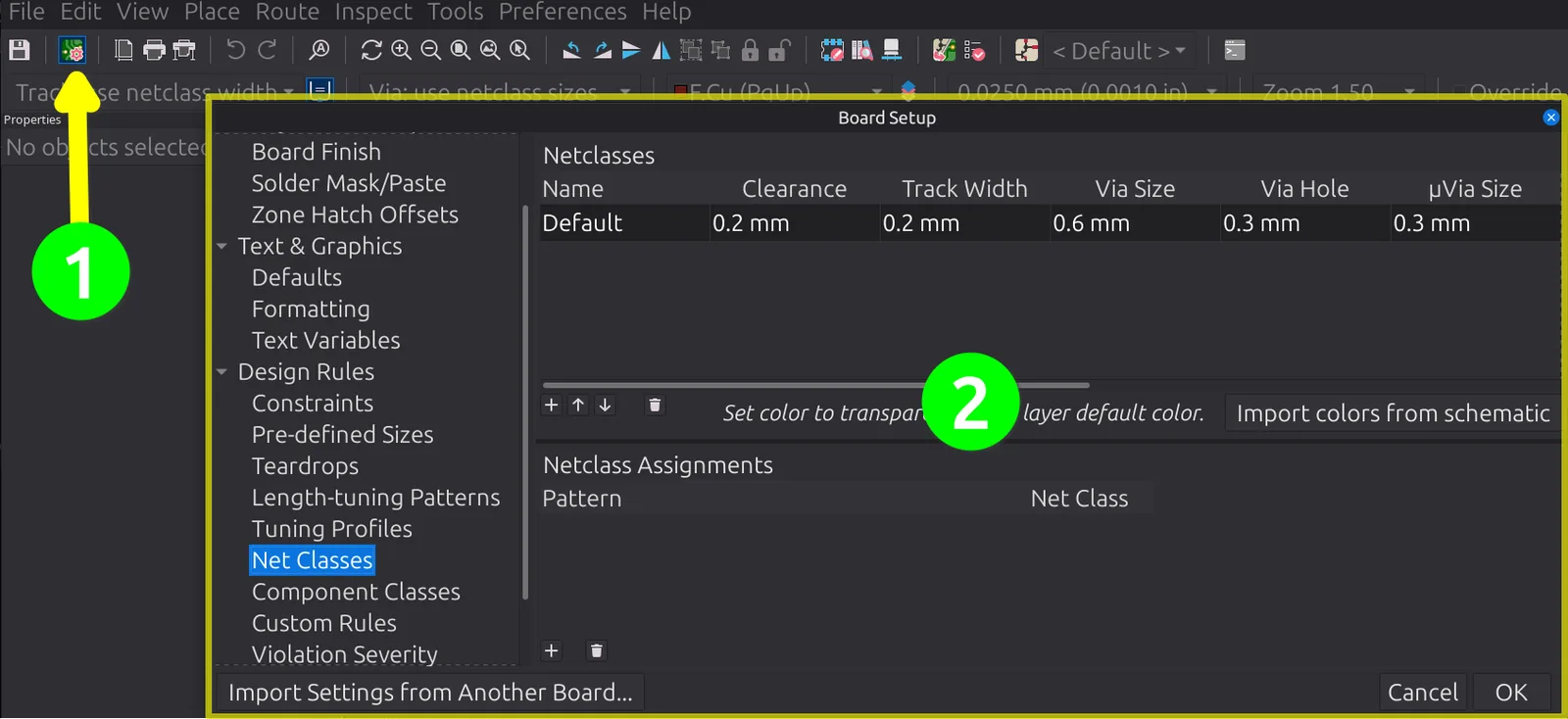
Figure 3.1: Board Setup on a board where nothing has been set up yet, opened from its toolbar button (❶) and sitting on the “Net Classes” page (❷). Notice what is missing. The “Netclasses” table holds one entry, “Default”, carrying the widths and clearances KiCad ships with, and the “Netclass Assignments” pane below it is empty. The section list down the left is the order this chapter follows: “Constraints”, “Pre-defined Sizes”, “Net Classes”, “Component Classes”, “Custom Rules”, and “Violation Severity”, with the stackup pages scrolled off the top. This is the starting point for everything that follows.