

In the last chapter you set up the board and assigned its nets to net classes, so the power nets are routed with wide tracks and the logic nets with narrow ones. The next step is to fill the empty space between the tracks with copper. This copper has two jobs on a board like this one. It is the ground return path (A return-path is a conductor that carries current from a load back to its source, completing the circuit. Every current that flows out to a load needs a path back; on a PCB that path is usually a ground pour or a dedicated return trace.) that carries the motor current back to its source, and it provides a common voltage reference for the whole circuit. KiCad calls an area of copper like this a ‘filled zone’. In this chapter you will learn how to create filled zones, how to stop copper from filling the areas where you do not want it, and how to manage a board that contains several zones.
Figure 4.1 shows what you will have at the end of this chapter: the motor driver with its ground pour in place, copper filling the space around every track and pad at the clearance the design rules require.
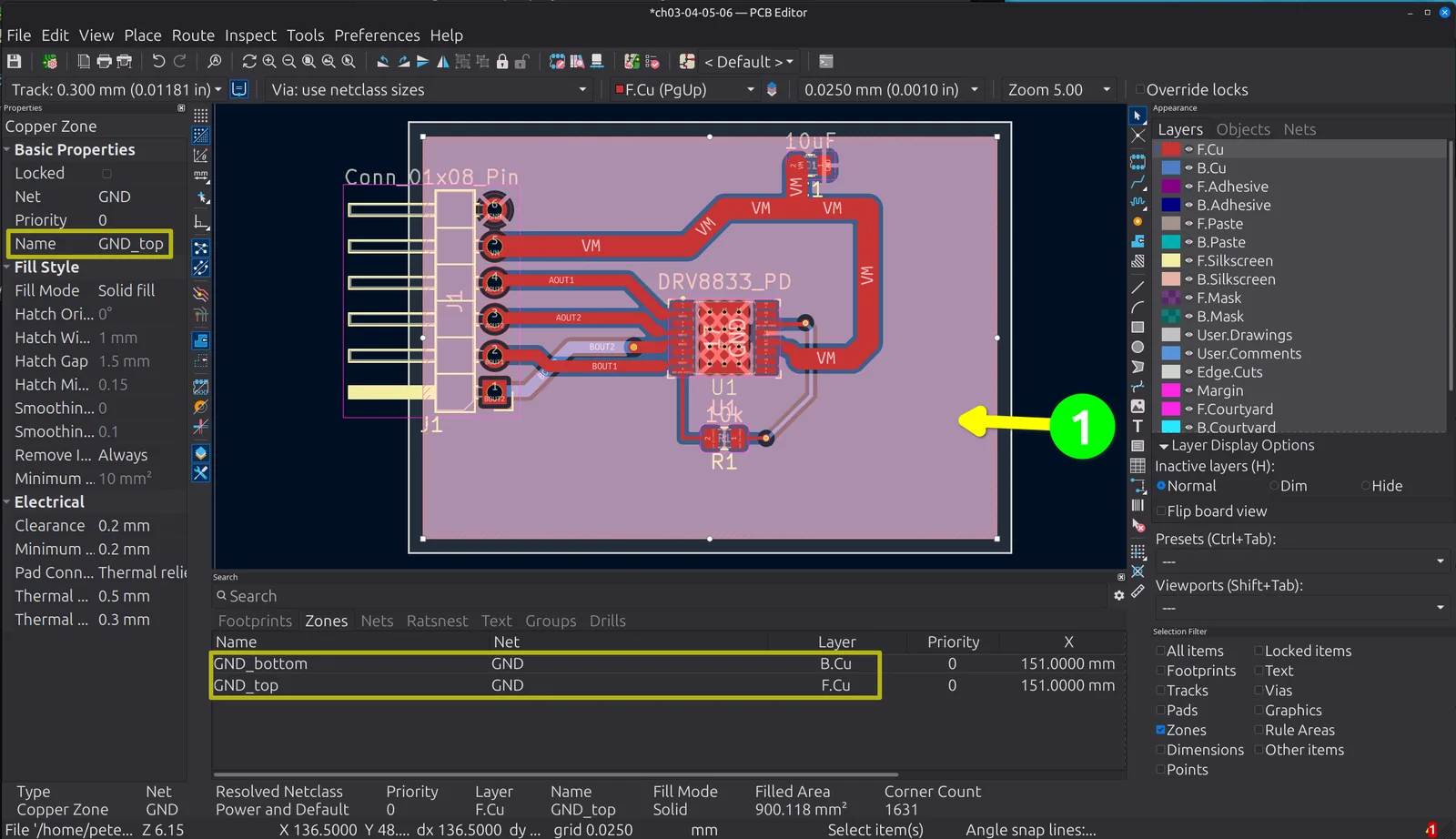
Figure 4.1: The ground pour on the top copper layer, selected so that everything KiCad records about it is on the screen at once. The arrow (❶) points into the pour itself, the pale copper filling every part of the board that the tracks and pads do not already occupy. On the left, the Properties panel reports the selected object: a Copper Zone on the “GND” net, named “GND_top”, filled solid, with the clearance and thermal settings this chapter works through. Along the bottom, the Search panel’s “Zones” tab lists what the board now holds, “GND_bottom” on B.Cu and “GND_top” on F.Cu. The status bar underneath is worth reading too. It resolves the zone’s net class to “Power and Default”, the pairing you built in the last chapter, and reports the filled area as 900.118 mm² across 1631 corners. You drew four corners; KiCad worked out the other 1627.