

The board is designed. The copper is poured, the parts are placed, and the net classes set the track widths for the power and signal nets. What you do not have yet is a list of what actually goes on it. That list is the ‘bill of materials’, or BOM. It is a very detailed shopping list of every component the board needs, in the right quantities. It also carries the ordering details that someone needs in order to buy the parts and build the board. You made a first, simple BOM in Volume 1. Here, we’ll go deeper, because a real board needs more from its BOM. This one carries supplier part numbers, so that a person can actually order from it. It groups identical parts onto a single line. And, for a board like the capstone that has variants, it describes more than one build from a single design.
The Built-in BOM
In KiCad 10 the bill of materials is produced by the ‘Symbol Fields Table’, the same spreadsheet view you used to bulk-load the DRV8833’s pins and to fill fields in earlier chapters. The BOM is not a separate tool any more. It is that same table, but exported via the “Export” tab. In the schematic editor, open the Symbol Fields Table from the “Tools” menu, then “Generate Bill of Materials”, or by clicking the icon that looks like a spreadsheet from the top toolbar. Once the Symbol Fields Table is open, notice the two tabs in the right pane. The “Edit” tab allows you to choose what goes into the BOM, the rows and the columns, and the “Export” tab allows you to choose the format of the file that comes out. The BOM is written to the disk when you click “Export” at the bottom.
Start on the “Edit” tab. Every field your symbols carry is available as a column, and you tick “Include” on the ones you want in the list. Here, you will see fields like the reference, the value, the footprint, and the custom fields you added when you authored the parts. This is where the work you did in Chapter 1 becomes useful. Your DRV8833 carries an “MPN” field and a supplier code, so it arrives in the BOM as a fully specified line with a real part number, not as a mystery chip someone has to identify later. Give a column a friendlier heading by editing its “BOM Name”, and add a computed column with a ‘virtual field’. A virtual field is a column that KiCad fills in for you, and it exists only in the Symbol Fields Table and in the exported BOM: it adds nothing to the symbols themselves. Two of them are useful here. ${QUANTITY} fills in the count of each grouped part, and ${ITEM_NUMBER} numbers the rows.
Grouping is a useful feature that turns a raw list of parts into a bill you can order from. Tick “Group By” on the fields that make two parts belong to a group, typically value and footprint, and every part that matches on those fields collapses onto one line with a quantity. The decoupling capacitors become a single row that says “100 nF, 0603, quantity 7”, which is how you would buy them. KiCad includes presets for this, which you can see in the “View presets” dropdown widget in the middle of the left pane. Of the various options, “Grouped By Value and Footprint” is the sensible default for a board like this, and you can save your own once you settle on a layout you like.
There are two attributes that control whether a part appears at all in the BOM. A component marked ‘exclude from BOM’, which you would set on a mounting hole or a fiducial, never appears in the list because it is not something you buy. A component marked ‘do not populate’ (DNP) is different. It is a real part that this particular build leaves off, so it still appears in the BOM, flagged as DNP, unless you also choose to hide DNP parts. We will rely on that distinction in the last section of this chapter.
Figure 5.1 puts those controls in one view, on the capstone’s own parts.
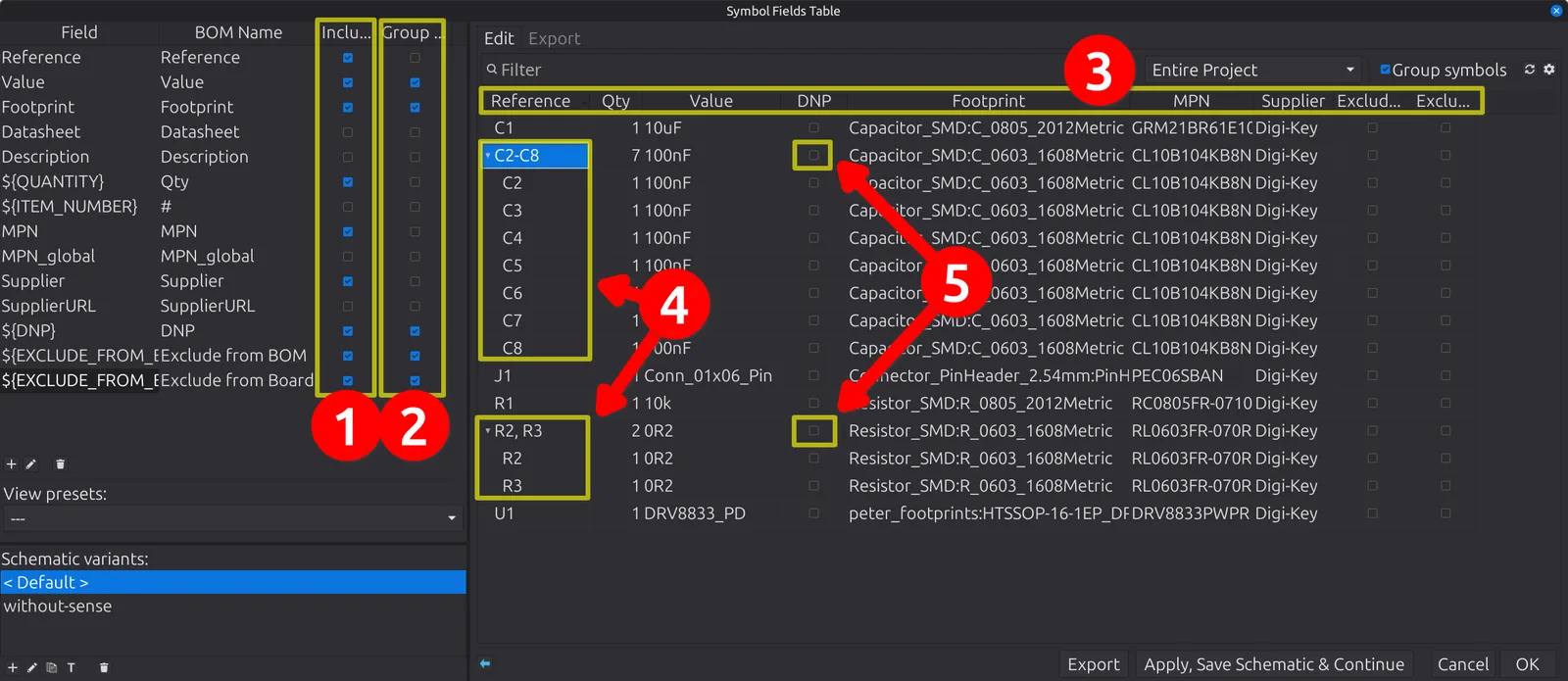
Figure 5.1: The “Edit” tab, which controls what the BOM contains. “Include” (❶) picks which of your symbols’ fields become columns in the bill (❸), and “Group By” (❷) picks which of those fields make two parts the same. Grouping has collapsed the seven 100 nF capacitors onto one row of quantity 7, and the two sense resistors onto one of 2; the disclosure triangles (❹) expand a grouped row to show the individual parts inside it. Read the “DNP” column (❺) carefully, because the last section of this chapter builds two products from this one design, and deciding whether DNP is the right way to express a difference, or the wrong one, turns out to be the interesting part.