

In the capstone project for volume 2, which you will work on in the next chapter, you will need to author custom parts. But before doing that, in this warm-up project you will do something almost as valuable. You will work at scale by using KiCad’s features that allow you to duplicate a portion of a board with just a few clicks. The board of this project includes four 8-by-8 LED matrices sitting side by side under the control of a microcontroller. The main objective of this project is to draw one section well and then reuse that work instead of hand-placing the components for the other three sections. Four matrices give you 256 individually addressable LEDs in a display band 80 mm wide and 20 mm tall, which is enough to scroll a message, draw a bar graph, or count something down in characters large enough to read across a room.
Before any of this existed in KiCad, I drew a sketch of what it might look like on paper. You can see a refined version of this sketch in Figure 7.1. The sketch consists of a rough plan of both faces of the board, drawn to help me assess how large the final gadget would be and roughly where its components would sit. There is a finished 3D render of this board, and you will see it at the end of the chapter, but at this point I want to be realistic. First comes the idea, then the idea is committed to paper as a rough sketch, and then the design and implementation work continues. The 3D render typically comes at the end of the design work, and that’s why I didn’t want to show it at the very beginning of the chapter. Be warned, though, that once I start the layout design, this sketch will help me complete the first iteration of the board, but there is no guarantee that the final production-ready layout will match. I may decide to make changes to the layout for a variety of practical, aesthetic, engineering and production reasons. If I do deviate from the sketch, I will explain the reasons supporting the changes.
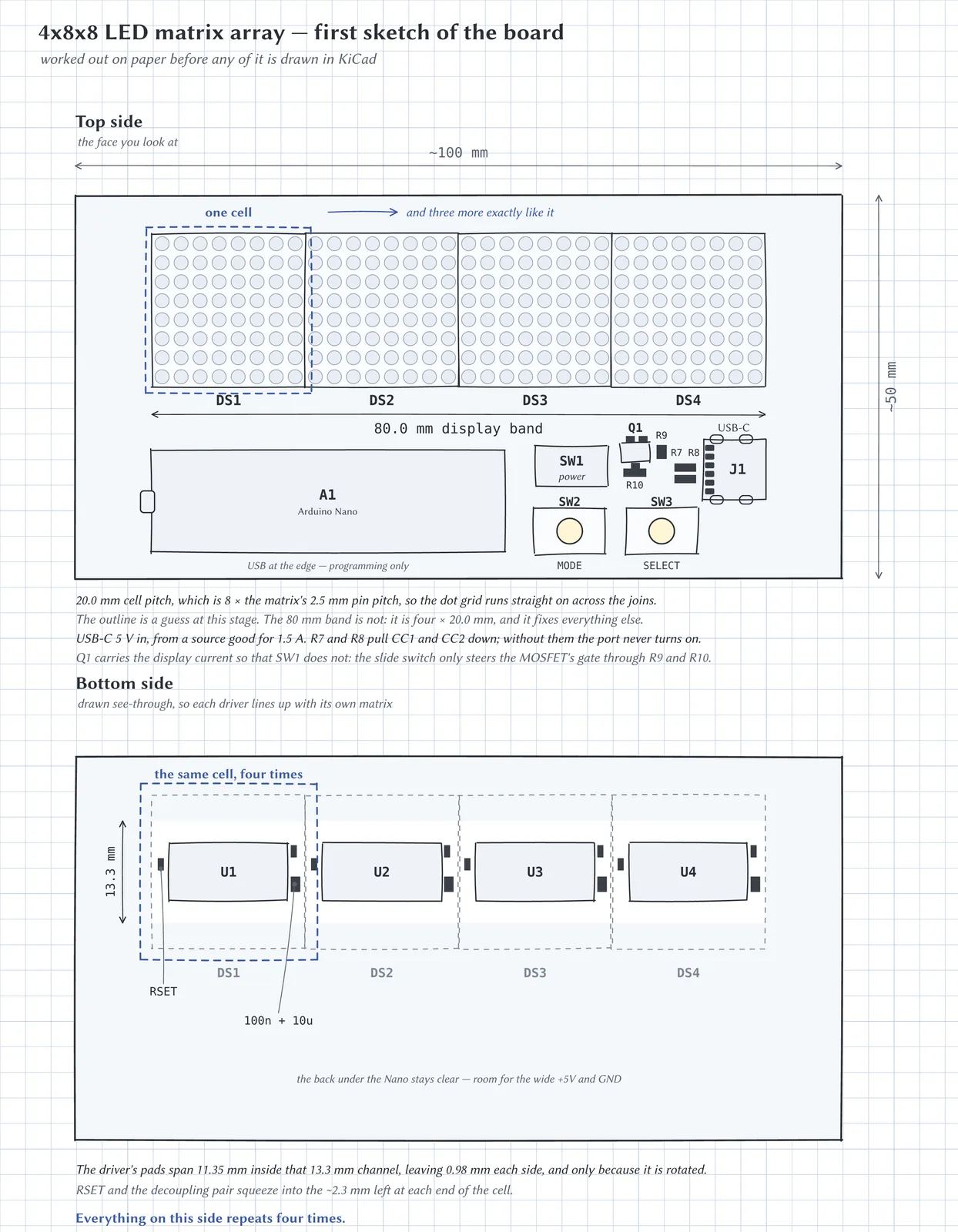
Figure 7.1: The board as a sketch, before any of it was drawn in KiCad. The top face carries the four matrices in a single row, and beneath them everything that exists only once: the Arduino Nano down the left, then the power switch, the load switch that spares it the display current, and the USB-C receptacle near the right-hand edge, with the two buttons on the row below. The back carries nothing but the four MAX7219 drivers, each tucked under its own matrix with its current-setting resistor and its decoupling pair, which is the point of the drawing: one cell, four times over. The back is drawn see-through, so that each driver lines up with the matrix it serves rather than being mirrored. Only the 80 mm display band is a fixed number at this stage; the surrounding outline is a proposal.
There are two things to notice in the sketch. The first is that the drawing is essentially one cell repeated four times. The cell contains a matrix display, a display driver placed on the back of the board, a current-setting resistor and a pair of decoupling capacitors. There is nothing different between the cell copies except the reference designators. The second is scale. The board is roughly 100 mm by 50 mm, but the exact dimensions are something we’ll determine in the layout editor. However, the 80 mm display band inside it comes from the four 20 mm matrices placed edge to edge. That is the only fixed dimension on the sketch.
I built the first version of this board in the fourth edition of KiCad Like a Pro as a clock. This new modernised edition keeps the display, the two buttons and the power switch. I have also added a USB-C power receptacle (because it’s 2026), a P-channel MOSFET load switch so that the slide switch no longer has to carry the display current, and a new simplified board shape to make it easier to place the board in a project box. My inspiration for designing this gadget was the classic Pomodoro timer (A Pomodoro Timer is a time management device or tool based on the Pomodoro Technique, a method developed by Francesco Cirillo in the late 1980s. It breaks work into focused intervals (traditionally 25 minutes, called a “Pomodoro”) followed by a short 5-minute break. After completing four Pomodoros, a longer break (typically 15–30 minutes) is taken. The timer helps improve productivity by encouraging sustained focus and regular rest.). For such a gadget, keeping time is not needed, and that is why I did not include a real time clock. I just need to be able to choose a timer preset, like a 10- or 15-minute session, and start/stop/reset the clock. This board counts down a work interval in the Pomodoro style, which the two buttons choose and start. Counting down a known number of minutes needs no absolute time reference, so nothing on the board has to know what day it is.
What you are building is that LED matrix cell, four times over, driven from the Arduino Nano across three wires (Figure 7.2). You can consider this as a base project rather than a finished product. If you want time and date keeping capability, the neatest route is not to add an RTC chip but to swap the Arduino Nano for one of the WiFi-capable modules in the same footprint, and let it fetch the time from the network. The schematic barely changes, and you get many more capabilities in return, because a board on the network can also be controlled remotely. That opens up capabilities such as scrolling live notifications, a status board for something you run at home, and a countdown someone else can start from a phone.
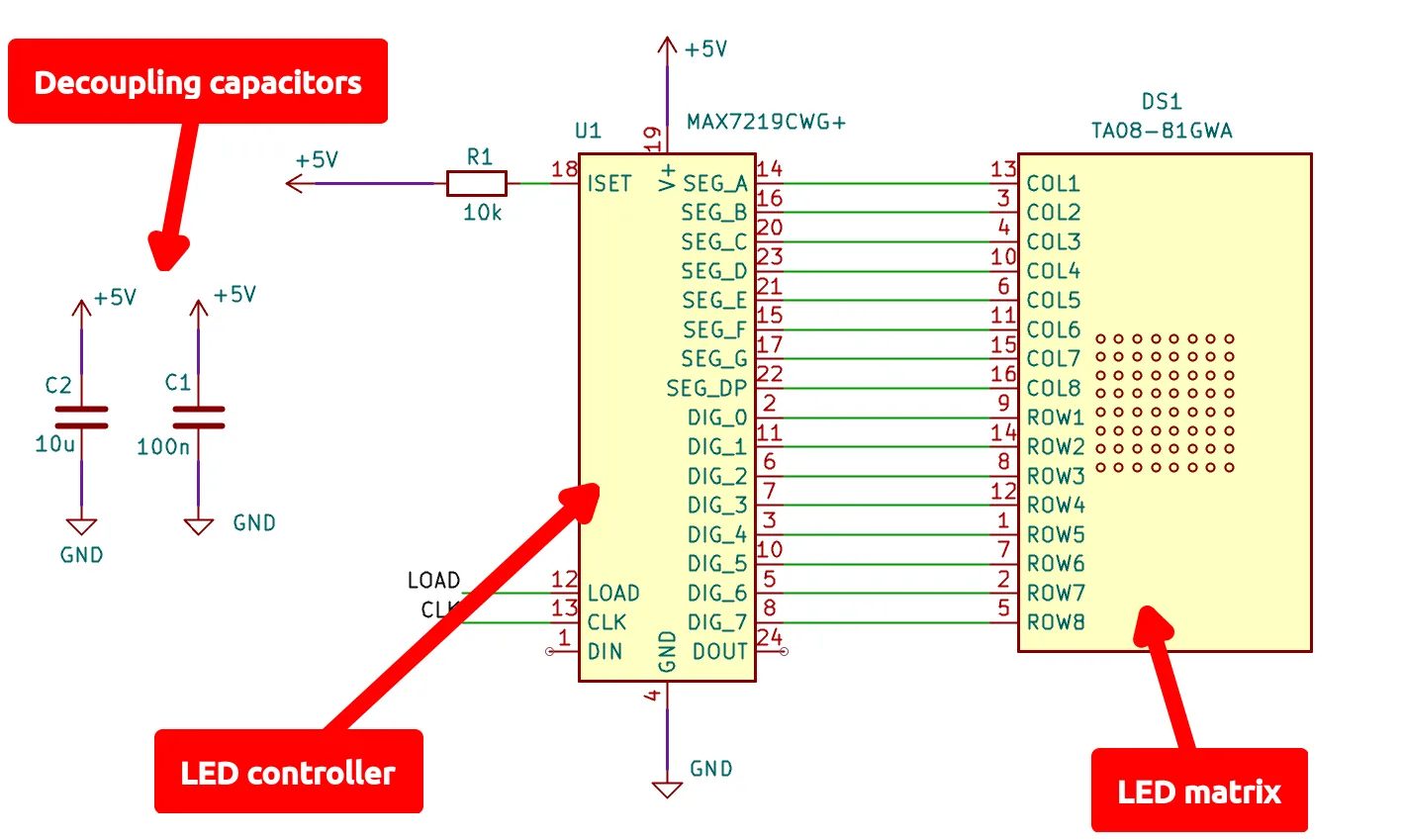
Figure 7.2: One cell, which is the unit the whole board is built from. The LED controller in the middle is the MAX7219, and the sixteen wires leaving its right-hand side carry the eight columns and eight rows of the LED matrix beside it. R1 above the driver sets its current ceiling, and the decoupling capacitors on the left hold the supply steady while it works. DIN and DOUT at the bottom of the driver are the two ends of the chain that will link this cell to the next three.
Let’s start by reviewing the main learning objectives of this project, and then go and build it.
What This Project Teaches You
I put this project before the capstone to help you become fluent with the machinery of a large schematic. The capstone, in the next chapter, builds on top of that fluency. These are the five new skills you’ll practice:
- Design blocks. You will capture one working cell once and stamp it out three more times, instead of drawing the same circuit four times. This is the main new skill of the chapter. You will meet it again in Chapter 9, where the four-motor extension uses the same feature on a bigger board.
- Working at scale. The finished sheet carries several times the parts of anything you built in Volume 1, and many times the wires and nets. Those boards had only a few components each. Habits that work on a handful of parts, such as checking each connection by eye, eventually stop working as the size of the board grows.
- Net classes that stand out. Chapter 3 set up the electrical half of a net class, the track widths and clearances. In this project, you fill in the graphic columns as well, so that the power rails stand out on the editor by using a distinct colour and weight. You will use net classes again in Chapter 8, for the motor nets (a motor draws its current continuously, while a multiplexed display draws it in short, hard bursts).
- Net class assignment patterns matching multiple nets. Chapter 3 taught you the pattern syntax on a board where a pattern matched a few nets. On this board, one pattern matches over thirty nets.
- Reading violations, not counting them. A violation that describes something you have not done yet is information rather than an error. You will learn how to use the information provided by the ERC or the DRC to improve your design, or to tell KiCad what is good or bad via the use of custom rules.
In this project, you will not author a symbol or a footprint from scratch. One part on this board, the LED matrix itself, is not in KiCad’s standard library, and I supply it ready-made in the book’s project library for you to import.